How To Fix "Ineligible for Verification" inside the Meta Business Manager (Still works in 2026)
This is the 5 minute practical fix for the missing or greyed-out verification button in Business Manager.
The Problem: Missing Verification Button
You are trying to verify your Business Manager by following standard guides, you go to the Security Center but the the verification button is absent.
No button, as shown in the image below:
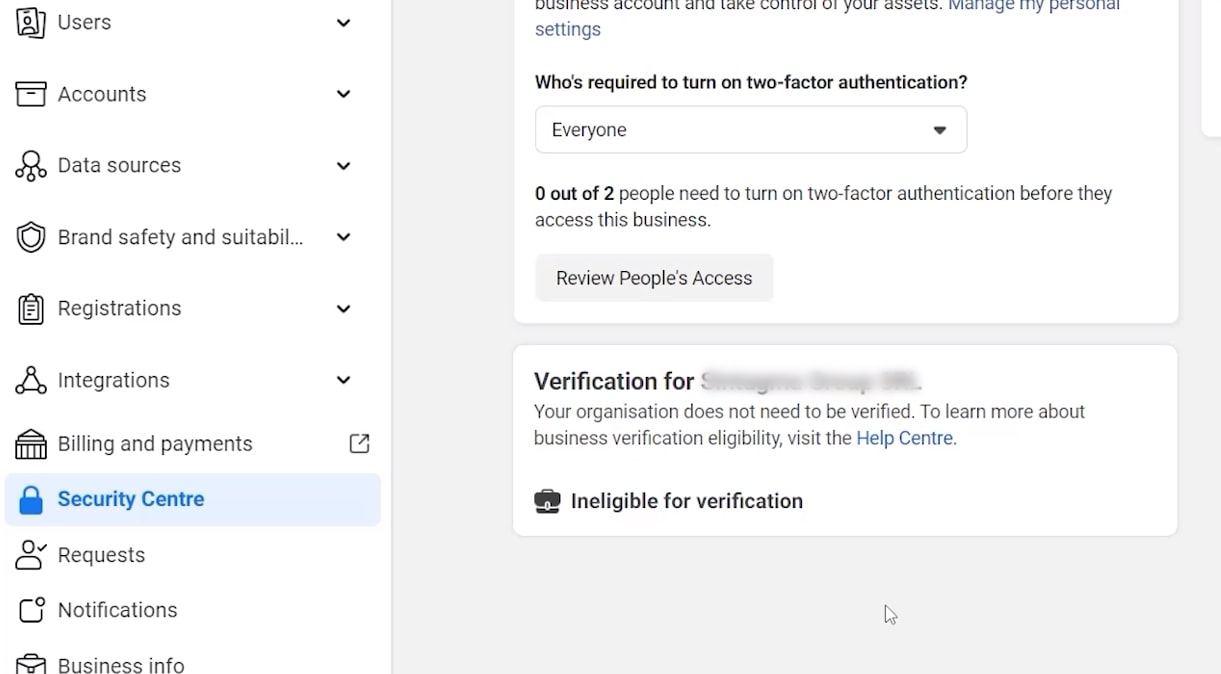
The Solution: Creating an App in Business Manager
The key to making the verification button appear is to create an app within Business Manager.
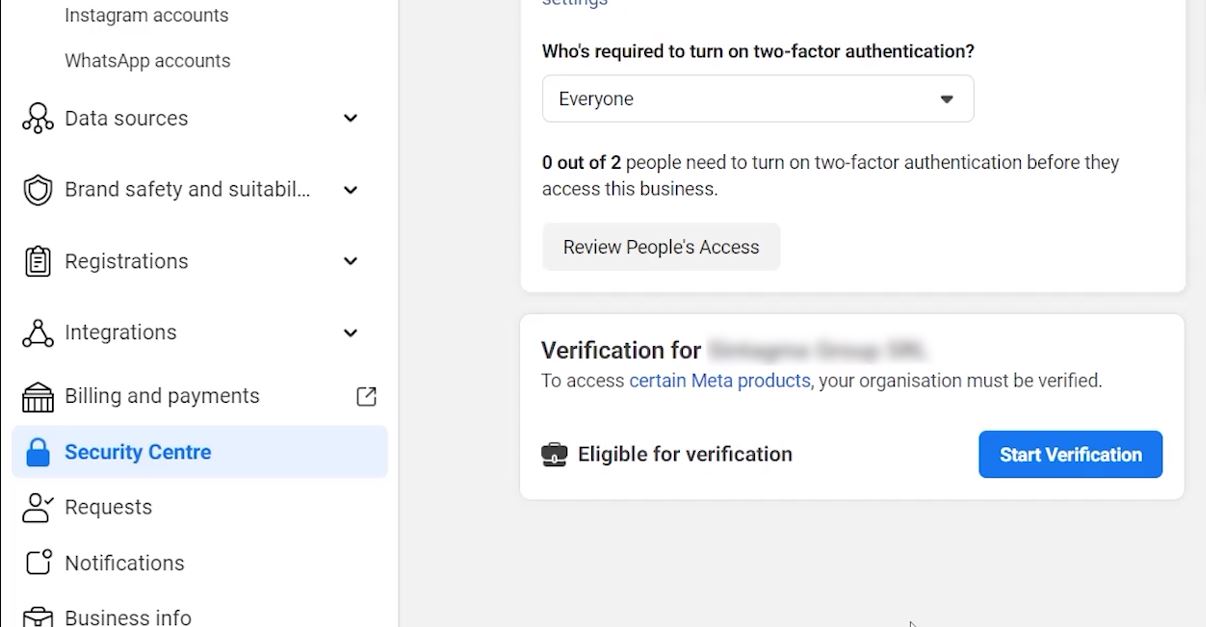
Since publishing a Meta app requires a verified Business Manager, creating an app should cause Business Manager to display the verification button.
Here is how to do it.
Step-by-Step Process
-
Navigate to Apps: Go to “Accounts” and then select “Apps” in your Business Manager. You can also use the direct link to Meta Apps.
-
Create a Developer Account: If you do not already have a developer account, open Meta Apps and follow Meta’s instructions to create one. If you can access the Apps page, you already have a developer account.
-
Create a New App ID: Go to the App Section. Make sure you have selected the correct Business Manager, especially if you manage multiple accounts. You can switch between them using the drop-down menu in the top left corner. Then click “Add” and select “Create a New App ID.”
-
Create the App: Give the app a generic name, such as “Test App.” This app is not intended for publication or active use and will remain unpublished.
-
Check the Security Center: After creating the app, return to the Security Center. You should now see the “Start Verification” button that was previously missing.
Video Tutorial
If you prefer learning through video, you can watch the full tutorial below.
Meta’s design has changed slightly, but the process is still exactly the same.
Why Is Business Manager Verification Important?
Verification of your Business Manager on Meta platforms is important for stability and trust.
Meta’s security AI takes many signals into account when identifying bad actors. Your objective is to appear as legitimate as possible in the eyes of that AI.
A common, yet unofficial, observation among experienced users and expert media buyers is that verification significantly reduces many problems that are often attributed to random policy violations.
Verification does not make you immune to policy violations, and you still have to follow the terms of service. However, it may make the difference between having a single ad blocked and having your entire ad account banned.
Additional Tips and Resources
Below are links to Meta’s policies and the documents needed to verify your Business Manager.
-
Full Guide to Business Manager Verification: Here is the guide
-
Supported Documents: Be sure to have all the required documents ready before starting the process. Here is a list of the supported languages and documents.
-
Meta’s Policies: Check Meta’s latest advertising policies and guidelines regularly, as they often change.
-
Video Tutorial: Watch my video tutorial. Seeing the step-by-step process may answer some of your questions.
If you still have problems, leave a comment on YouTube. I reply to every comment and will try to help.
© Gabriele Galluzzo.RSS